Roku works differently from Android-based devices, so IPTV support is limited and depends on your exact device and the apps available in your region. This guide explains the options honestly so you can decide before you pay.
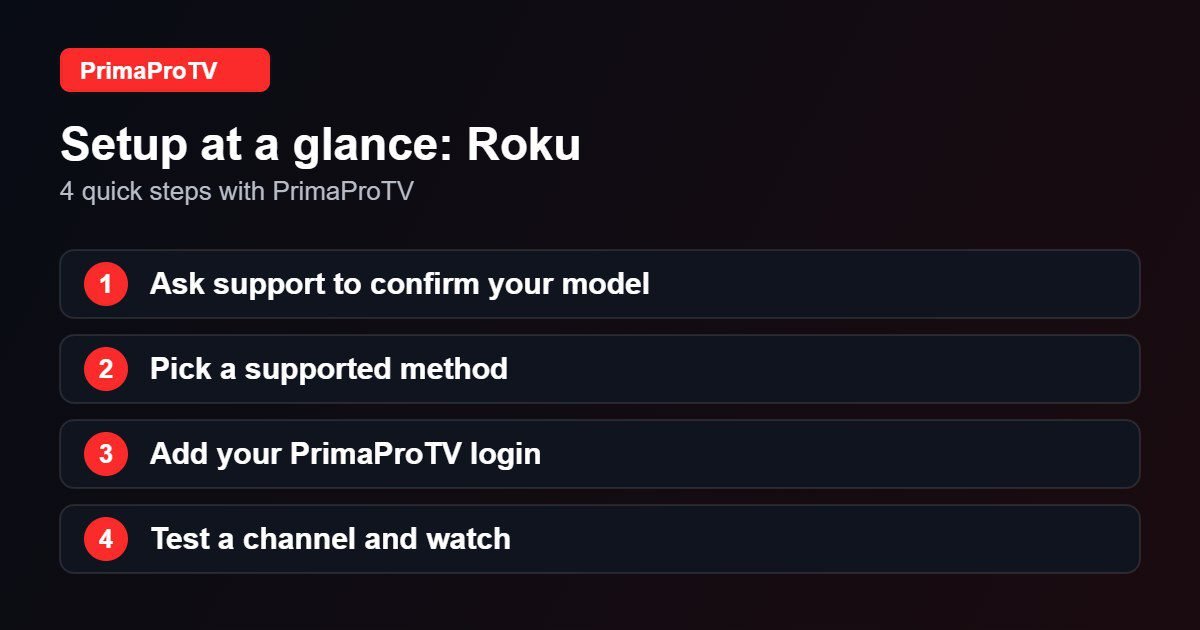
Ask Support First
Please contact our support team with your exact Roku model before subscribing. We will confirm what works for your device.
Your Options
Option 1: Use a Compatible Player From the Roku Channel Store
Search the Roku Channel Store for a player that supports M3U or Xtream details. Availability varies by country and Roku model, so confirm it works with your account before relying on it.
Option 2: Screen Mirroring
Some Roku models support mirroring from an Android phone or Windows PC. Open the player on your phone or computer, then cast the screen to Roku. Quality depends on your Wi-Fi and the device, and it can be less stable than a native app.
Option 3: Use a Different Streaming Device
For the smoothest experience, plug an Android-based device such as a Fire TV Stick into your TV. See our Fire TV Stick guide.
Watch: Roku Streaming Stick setup walkthrough
This third-party video is a general walkthrough for your device and is not made by PrimaProTV. Your own screens may look slightly different depending on your model and software version.
Tips
- Keep your Roku close to the router or use Ethernet if the model supports it.
- Restart Roku from Settings, System, Power, System restart if playback is slow.
FAQ
Does PrimaProTV work on Roku?
It depends on your model and available players. Ask support to confirm your exact device.
Is mirroring reliable?
It works for some users, but a native player on another device is usually more stable.
Next Step
Contact support, or start with a free trial to test your setup first.