
MAG set-top boxes use a portal system that is different from standard player apps. Because setup depends on your exact model and on how your provider supports portals, please confirm with us before you pay.
Ask Support First
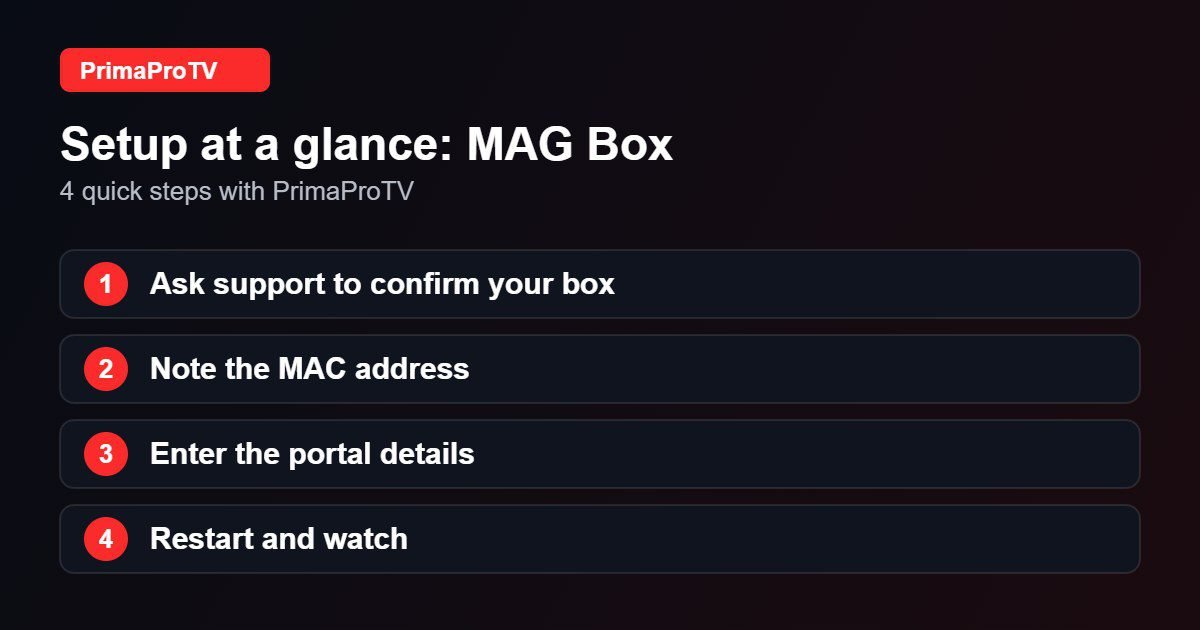
Contact PrimaProTV support with your MAG model and its MAC address before subscribing. We will confirm whether we can support your box and tell you exactly what to enter.
What You Will Need
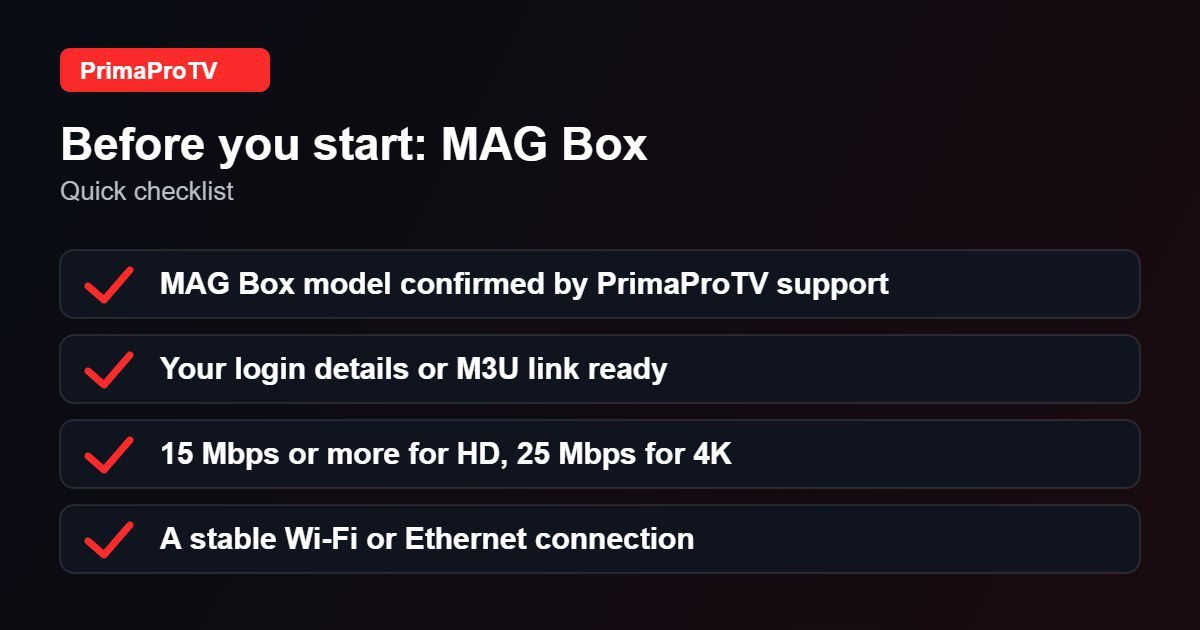
- Your MAG box connected to the TV and the internet.
- The MAC address printed on the label under the box.
- The portal details supplied by support, if your box is supported.
General Setup Steps
- On the box, open Settings, then System settings, then Servers.
- Select Portals.
- Enter a portal name and the portal URL given by support.
- Save, then restart the box so it loads the portal.
Menu names can differ slightly between MAG models and firmware versions.
Watch: MAG box setup walkthrough
This third-party video is a general walkthrough for your device and is not made by PrimaProTV. Your own screens may look slightly different depending on your model and software version.
Tips
- Use an Ethernet cable for the best stability.
- Keep the box firmware updated.
- Double-check the MAC address when you send it, since one wrong character prevents activation.
Troubleshooting
Portal will not load
Check the URL, restart the box and confirm your internet connection.
Black screen after restart
Make sure the portal is saved correctly and that your MAC address was activated.
FAQ
Does PrimaProTV work on every MAG box?
Not necessarily. Ask support to confirm your exact device before you pay.
Is there an easier option?
An Android-based device such as a Fire TV Stick is usually simpler. See our Fire TV Stick guide.
Next Step
Message support with your MAG model, or try a free trial on another device first.


