Chromecast comes in different versions, and how you use IPTV depends on which one you own. This guide covers both cases and tells you when to ask support first.
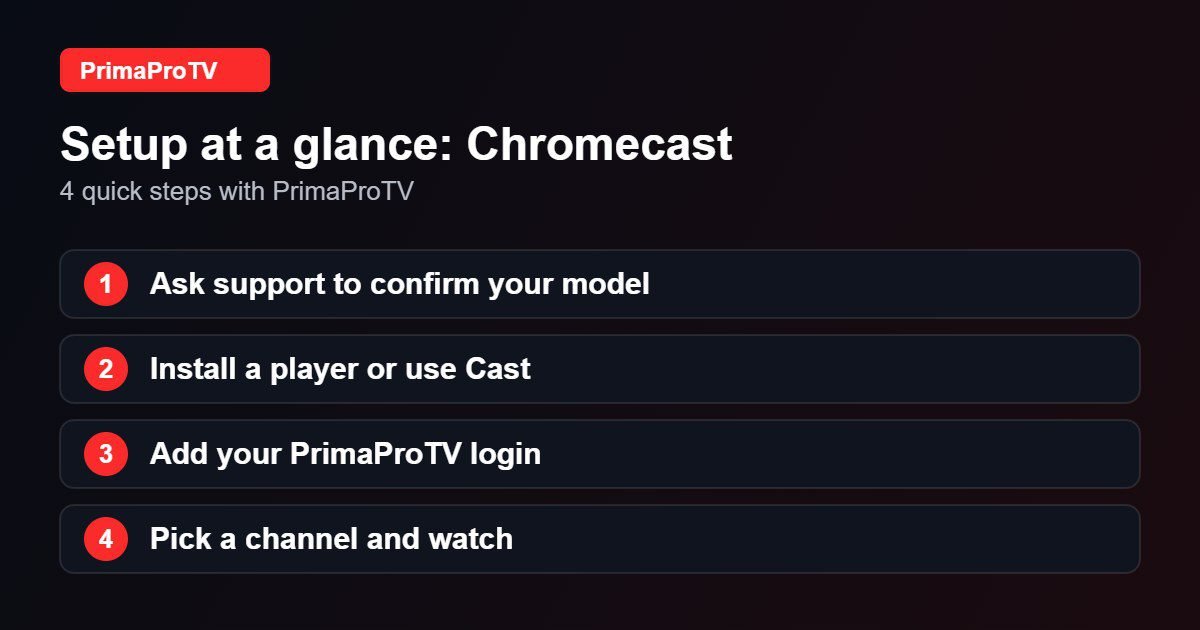
Ask Support First
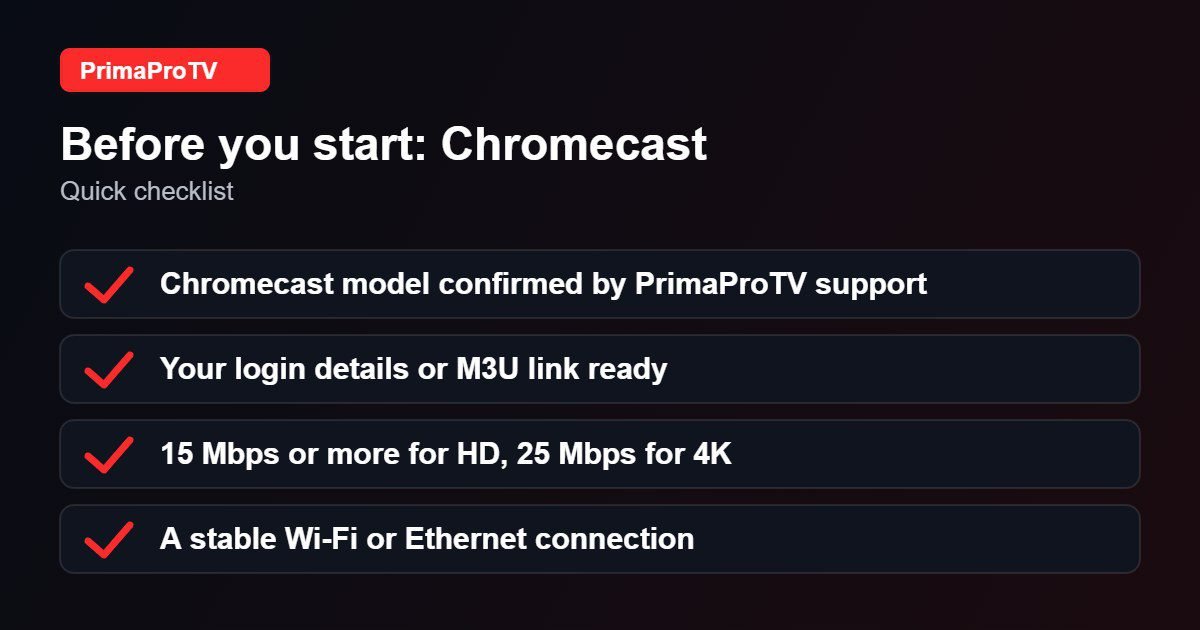
Before paying, contact support with your exact Chromecast model. We will confirm the best method for your device.
Chromecast With Google TV
This model runs Google TV, so you install apps directly. Follow the same steps as in our Android TV guide: install a player from the Play Store, add your PrimaProTV login and start watching.
Chromecast Without Google TV
Older Chromecast devices have no app store, so you cast from another device.
- Connect your phone, tablet or computer to the same Wi-Fi network as the Chromecast.
- Install an IPTV player that supports casting.
- Add your PrimaProTV account in the player.
- Open a channel and tap the Cast icon, then choose your Chromecast.
Not every player supports casting, and some channels may behave differently when cast, so test before relying on it.
Watch: Chromecast with Google TV setup walkthrough
This third-party video is a general walkthrough for your device and is not made by PrimaProTV. Your own screens may look slightly different depending on your model and software version.
Tips
- Use 5 GHz Wi-Fi for both devices.
- Keep your phone awake and nearby while casting.
- Restart the Chromecast by unplugging it for ten seconds if the connection drops.
Troubleshooting
Cast icon missing
Make sure both devices are on the same network and the player supports casting.
Buffering
Check your internet speed and move closer to the router.
FAQ
Does PrimaProTV work on Chromecast?
Yes on Chromecast with Google TV; on other models it depends on casting support. Ask support to confirm.
Next Step
Test with a free trial before you commit.


