Setting up IPTV on an Amazon Fire TV Stick takes about ten minutes and needs no extra hardware. This guide walks you through installing an IPTV player, signing in with your PrimaProTV details, and fixing the most common problems, so you can start watching live TV on your Fire TV device today.
Before You Start: What You Need
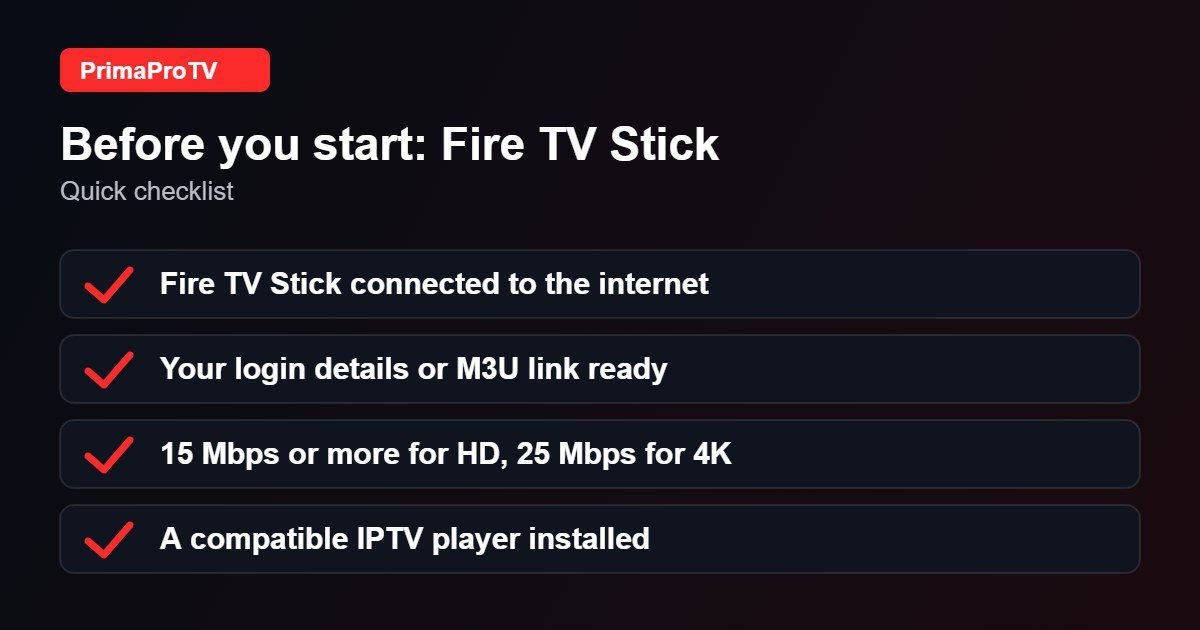
- An Amazon Fire TV Stick, Fire TV Cube or Fire TV edition television, connected to Wi-Fi.
- An active PrimaProTV subscription or free trial. After signing up you receive your login details (username, password and server URL, or an M3U link).
- A stable internet connection. For HD streams we recommend at least 15 Mbps; for 4K, 25 Mbps or more.
Check your device first. Newer Fire TV models run Fire OS 7 or later and work with most IPTV players. Very old first-generation sticks can struggle with large channel lists. If you are unsure about your exact model, contact our support team before you pay and we will confirm compatibility.
Step 1: Choose an IPTV Player
PrimaProTV is a service, and you watch it through a player app. On Fire TV the easiest option is a player that is available directly in the Amazon Appstore, so there is nothing to sideload. IPTV Smarters Pro is a popular choice. If you want to compare options, read our guide to the best IPTV players in 2026.
Step 2: Install the Player on Your Fire TV Stick
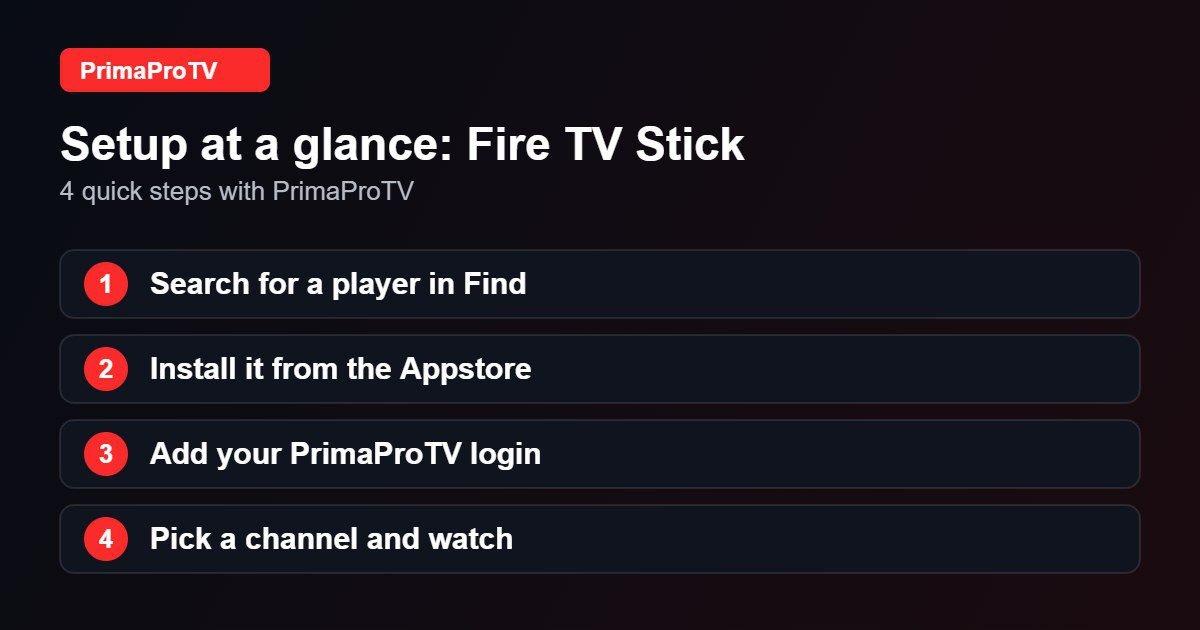
- From the Fire TV home screen, select the Find icon (magnifying glass), then Search.
- Type the name of your chosen player, for example IPTV Smarters Pro.
- Select the app from the results, then choose Get or Download.
- When installation finishes, select Open. You can also pin the app to your home screen so it is one click away.
Step 3: Sign In With Your PrimaProTV Details
- Open the player and accept the on-screen terms.
- Choose Login with Xtream Codes API (or Load Your Playlist or File/URL if you were given an M3U link).
- Enter a display name of your choice, then the username, password and server URL exactly as they appear in your welcome email.
- Select Add User. The player loads your channel list, which can take up to a minute the first time.
Tip: use the Fire TV remote’s microphone button or the Fire TV app on your phone to type long server addresses faster and avoid typos.
Step 4: Start Watching
Once the list loads, browse Live TV, Movies and Series from the main menu. Open the channel list, pick a category and press the select button on a channel to play it. Most players also let you add favorites and use a TV guide (EPG), so you can find what is on now and next.
Watch: Fire TV Stick 4K setup walkthrough
This third-party video is a general walkthrough for your device and is not made by PrimaProTV. Your own screens may look slightly different depending on your model and software version.
Tips for the Best Streaming Quality on Fire TV
- Use 5 GHz Wi-Fi or an Ethernet adapter if your stick supports one. A wired connection is the most reliable fix for buffering.
- Keep the stick cool and ventilated. Plug it into an HDMI extender if the TV port is cramped, and use the original power adapter rather than the TV’s USB port.
- Clear the cache regularly. Go to Settings, Applications, Manage Installed Applications, select your player, then Clear Cache.
- Restart the stick now and then via Settings, My Fire TV, Restart.
Troubleshooting Common Problems
The player says login failed or unauthorized
Re-check the username, password and server URL for extra spaces or capital letters. If the error continues, see our walkthrough on how to fix the IPTV Smarters failed to authorize error.
Channels buffer or freeze
Test your speed, move closer to the router, or switch to a wired connection. Close other apps that stream or download at the same time. If the problem is only on one channel, try another channel in the same category to rule out a single stream issue.
The channel list is empty or will not load
Remove the account in the player and add it again. Make sure the date and time on the Fire TV are set automatically, because a wrong clock can break secure connections.
The app crashes or is slow
Clear the cache, restart the stick, and make sure Fire OS is up to date under Settings, My Fire TV, About, Check for Updates. If you have a very large playlist, load only the categories you use.
Frequently Asked Questions
Does PrimaProTV work on every Fire TV Stick?
It works on most current Fire TV Stick, Fire TV Stick 4K and Fire TV Cube models. Older devices can be slower. Ask our support team to confirm your exact model before you subscribe.
Do I need a VPN?
A VPN is not required to use PrimaProTV. Some people choose one for extra privacy. Always follow the laws and terms that apply in your country.
Can I use PrimaProTV on more than one device?
The number of simultaneous connections depends on your plan. Check your plan details or ask support if you want to use the same account on several screens.
How do I get help if something does not work?
Message us through the contact page with your device model and a short description of the problem. We typically reply quickly and can walk you through the fix.
Ready to Watch on Your Fire TV?
Start with a free trial to test the stream quality on your own Fire TV before you commit. If you run into any issue during setup, our support team is ready to help.